Choose a Gerardo.Work tool by the task you need to finish
Start from the job — learn AI, fix food photos, build a menu, or plan a room — then open the matching product page and its live surface.

Gerardo.Work is a public archive of 51 products by Gerardo Salazar. Each entry names the product category, platforms, and technology, and links to the live surface where one is available. If you arrived from search with a concrete job in mind, use this guide to pick the right starting point instead of browsing A to Z. Open the product page and then the live surface: confirm what the product does, who it is for, and where you actually continue before you invest time.
If you want to learn AI from zero
Start with AI Clases and Aulas de IA. Both are listed in the archive as AI education products. Their product pages show the language, platform and available destinations; check the linked live surface for the current enrollment path. Open AI Clases if you prefer Spanish. Open Aulas de IA if you prefer Portuguese. If you prefer English, use TakeAICourse as the companion entry. Read what level each course targets and what format it uses before you commit time.
Practical start: write down your task in one sentence. Example — hypothetical: "I need to write better prompts for product descriptions twice a week." Then open one introductory lesson, complete it, and save one reusable prompt you will actually use. One finished lesson with one saved prompt beats five bookmarked courses.
If you need better restaurant photos for delivery and social
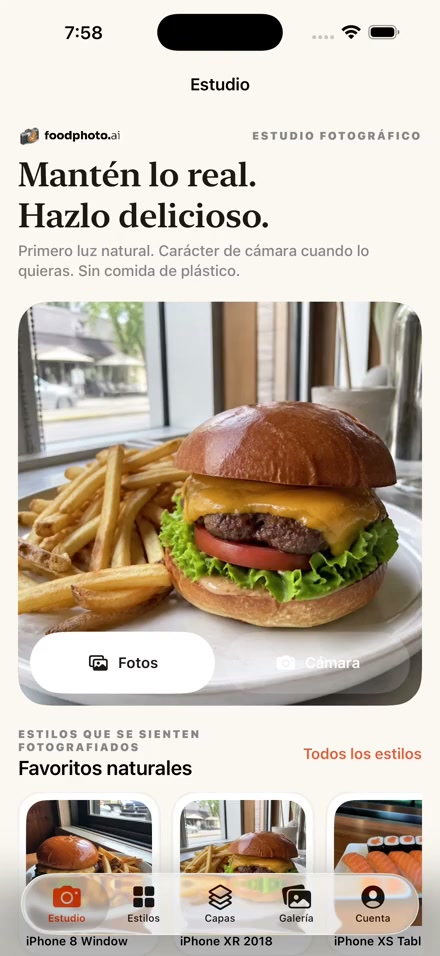
Start with FoodPhoto AI at FoodPhoto AI. It is listed as Restaurant AI. For studio operations context, see Foodelopers and Eat Easier. The product page shows the platform and available destinations; confirm the current surface and terms there before you start.
Practical start: pick one dish you sell every week. Photograph it in daylight near a window, keep the background clear, then compare the original with the version you prepare for your menu. Use the same plate, same angle, and same crop so the comparison is honest. Do not use a supplier stock photo as if it were your dish — regulars notice, and delivery photos set expectations the kitchen has to meet.
If you need to create or clean up a menu
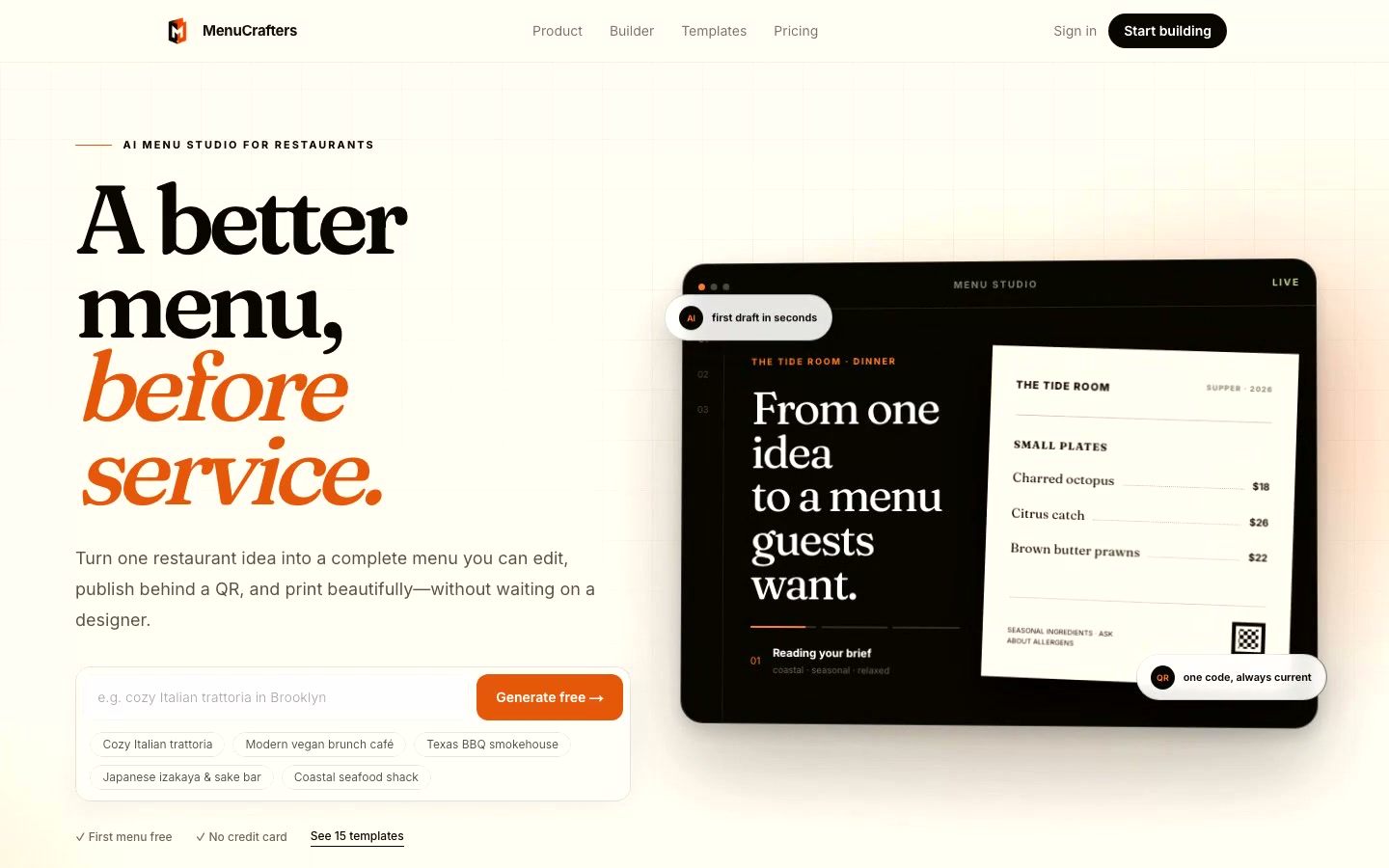
Start with MenuCrafters at MenuCrafters. For operations checklists, see Manual del Restaurante and Wobistro. Menus fail quietly: a wrong price, a retired dish, or a photo from two renovations ago. A ten-minute review pass once a month prevents most of it.
Practical start — copy this 10-minute checklist:
- Name, portion, and price match what the kitchen actually serves
- Allergens and options are stated plainly
- Photos show the current presentation, not a past version
- Categories follow order flow: starters, mains, desserts, drinks
- One special is highlighted; the rest stays readable
Hypothetical example: a lunch counter removes three slow starters, keeps photos for its five best sellers, and prints a QR that opens the same menu customers see online. Fewer choices, faster ordering, one menu to maintain instead of three.
If you need to plan a room change before you buy anything
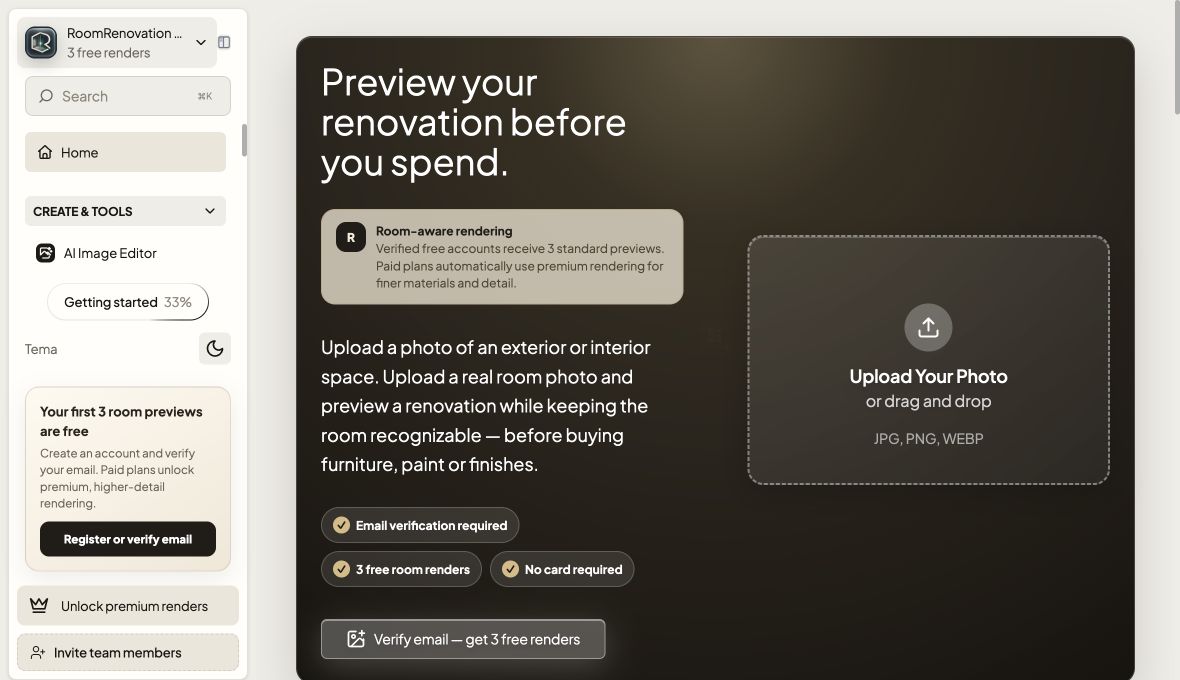
Start with Room Renovation AI at Room Renovation AI and IA Espacio at IA Espacio. Both are listed as Interior AI. Visualization helps most before spending: it forces decisions about layout, light, and the furniture you must keep while changes are still cheap.
Practical start: measure the room, note window direction and existing furniture you must keep, then test one layout change at a time. Save before/after notes with date and dimensions so a contractor or landlord sees the same facts you do. Bring those notes — not just a feeling — to the store or the quote.
How to use the archive without getting lost
The Product archive on the homepage lists the current A–Z catalog. Use it as reference, not as a footer. Open the product page, confirm platform and availability on its live surface, then continue there. If a product shows active development, treat dates and availability as provisional until its own page confirms them.
What this guide does not promise
This guide does not guarantee rankings, traffic, sales, or course outcomes. Availability, prices, languages, and iOS/web status can change; the linked product page and its live surface are authoritative. Need help choosing? Use Help & support.